How to migrate a Custom GPT to your own storefront before December 11
Every Custom GPT stops running on December 11, 2026, and every GPT link you shared stops with it. Here is how to move your GPT onto a storefront you own, step by step, from copying the instructions out of ChatGPT to emailing your buyers the new address.

OpenAI has scheduled the retirement of Custom GPTs for December 11, 2026. On that day every GPT in the GPT Store stops running, and every chatgpt.com/g/… link you have ever shared stops working. If you built a GPT for your audience, your clients or your paying members, you have until then to move it somewhere you control.
This guide walks through that move onto AgentFront, step by step: what to copy out of ChatGPT, where each piece goes, how to test the result, and how to hand your audience the new address. Plan on about 45 minutes for a typical GPT with a handful of knowledge files, and longer if your GPT uses Actions.
The timeline
These are the dates OpenAI gives in its Custom GPT retirement and migration FAQ. OpenAI calls them planned dates, so check the FAQ for changes.
| Date | What happens |
|---|---|
| September 25, 2026 | No new Custom GPTs can be created |
| December 11, 2026 | Existing Custom GPTs stop running |
OpenAI's own path forward is a migration into plugins that live inside a ChatGPT workspace. That works for a GPT your team uses internally. It does not work for a GPT you share by link, sell access to, embed in a course, or print on a QR code, because plugins are not link-shareable outside the workspace. The FAQ also notes that Actions do not transfer automatically.
Who this guide is for
- You sell access to a GPT on Gumroad, Stan Store, Whop or your own site.
- Your membership, course or community includes a GPT.
- Your GPT link sits in articles, newsletters, bios or QR codes you cannot easily update.
- Your clients depend on a GPT you built for them.
If your GPT is a personal tool nobody else uses, OpenAI's plugin migration is probably enough. Everyone else keeps reading.
What moves, and what doesn't
A Custom GPT is a small set of parts. Here is where each one lands on AgentFront.
| In your Custom GPT | On AgentFront |
|---|---|
| Name and description | Agent name, tagline and storefront copy |
| Instructions | The system prompt, saved as version 1 and editable with rollback |
| Conversation starters | Starter questions on the storefront chat |
| Knowledge files (up to 20 in a GPT) | Knowledge sources: PDF, Word, text, Markdown and CSV files, plus websites, sitemaps and live MCP servers |
| Image generation | Built in, switched on per agent |
| Actions (an OpenAPI schema plus a key or OAuth) | Connectors for Shopify, Klaviyo and WordPress, or any MCP server by URL. Not automatic, see step 4 |
| Web browsing | Not available yet |
| Code interpreter and canvas | Not available |
| Sharing by link, free for everyone | Your own address, customer accounts, free and paid monthly plans through your own Stripe account |
The last row is the reason to do this at all. A GPT could never charge, never knew who its users were, and lived on a link OpenAI owned. Your migrated agent lives on yourname.agentfront.me or your own domain, with customers who sign up, plans you price, and payouts that go to your Stripe account with no platform cut.
Before you start
- Access to the GPT editor in ChatGPT. Only the GPT's creator (or a workspace admin) can open it.
- The original knowledge files on your computer. The editor lists their names but does not offer a download, so find the originals now, while the GPT still runs.
- Five or six prompts your users actually send. You will use them to compare the two versions.
- A Stripe account, if you plan to charge. Not needed for a free agent.
- An empty folder on your computer to collect everything in step 1.
Step 1: Copy everything out of ChatGPT
Open chatgpt.com, go to GPTs, then My GPTs, and click the pencil icon next to the GPT you are moving. Switch to the Configure tab. Work down the page and save each item into your folder.
- Name and Description. Paste them into a text file.
- Instructions. Click into the box, select all, copy, and save as
instructions.txt. GPT instructions are capped at about 8,000 characters, so this is one short file. - Conversation starters. Copy each one on its own line into
starters.txt. - Knowledge. Write down every file name listed. Match each to the original on your computer. If you no longer have an original and it was a text-based file, open a normal chat with the GPT and ask it to print the file's contents section by section, then save the result. For PDFs or spreadsheets you cannot recover this way, go back to the source they came from.
- Capabilities. Note which boxes are ticked: web browsing, image generation, code interpreter, canvas. This tells you what to expect in the mapping table above.
- Actions. For each action, open it and copy the schema (the OpenAPI JSON or YAML) into its own file. Note the authentication type (none, API key, or OAuth) and the API's base URL. If an action calls your own backend, note which endpoints the GPT actually used.
Do not delete or migrate the GPT in ChatGPT yet. It keeps running until December 11, and OpenAI's FAQ notes that a GPT migrated to a plugin becomes read-only, so finish any edits first.
Step 2: Create your agent
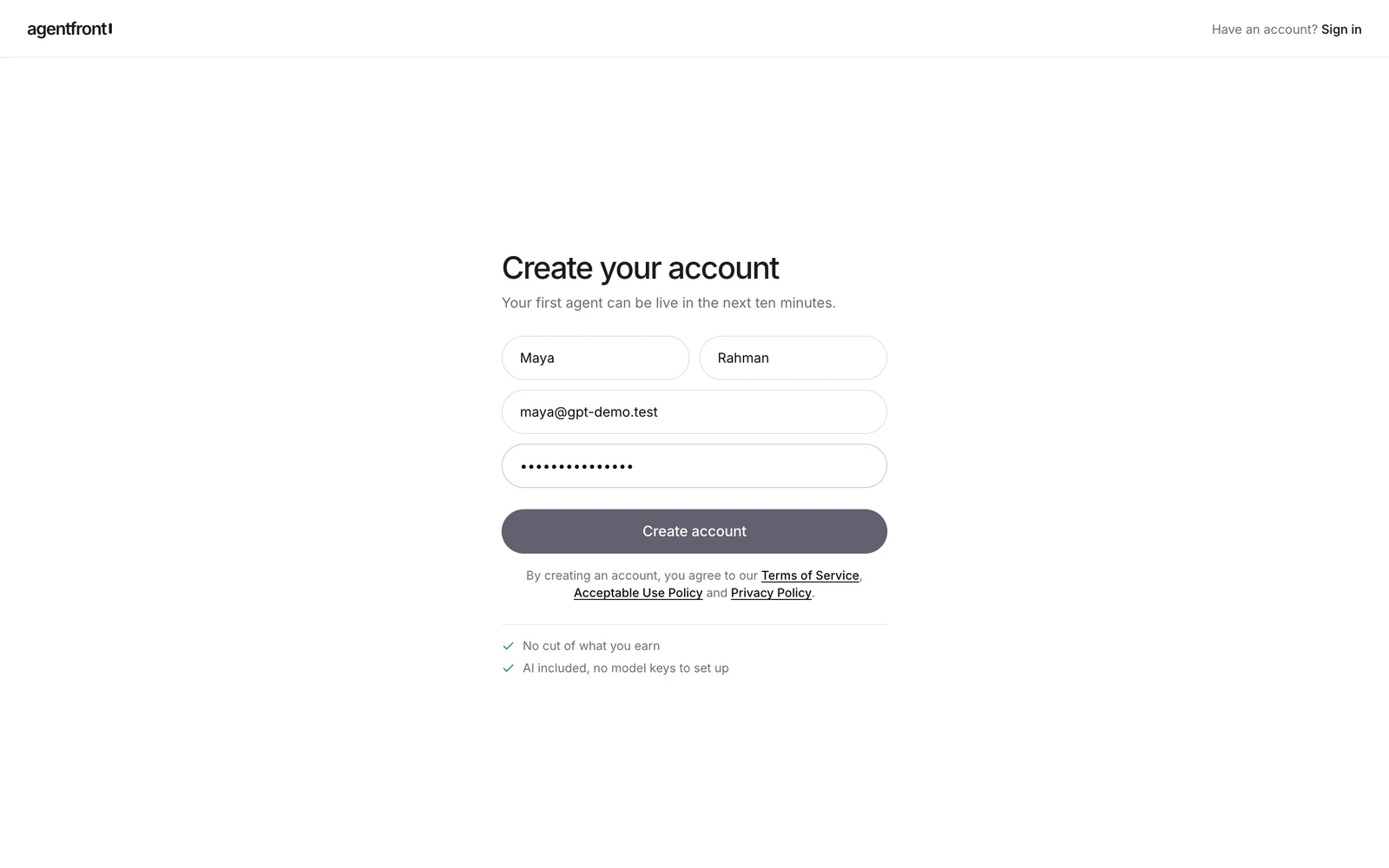
Go to app.agentfront.me/signup and create an account. The Trial plan is free with no card: one agent, 1,000 AI credits, 25 active customers and 100 MB of knowledge. That is enough to migrate, test, and go live with a small audience.
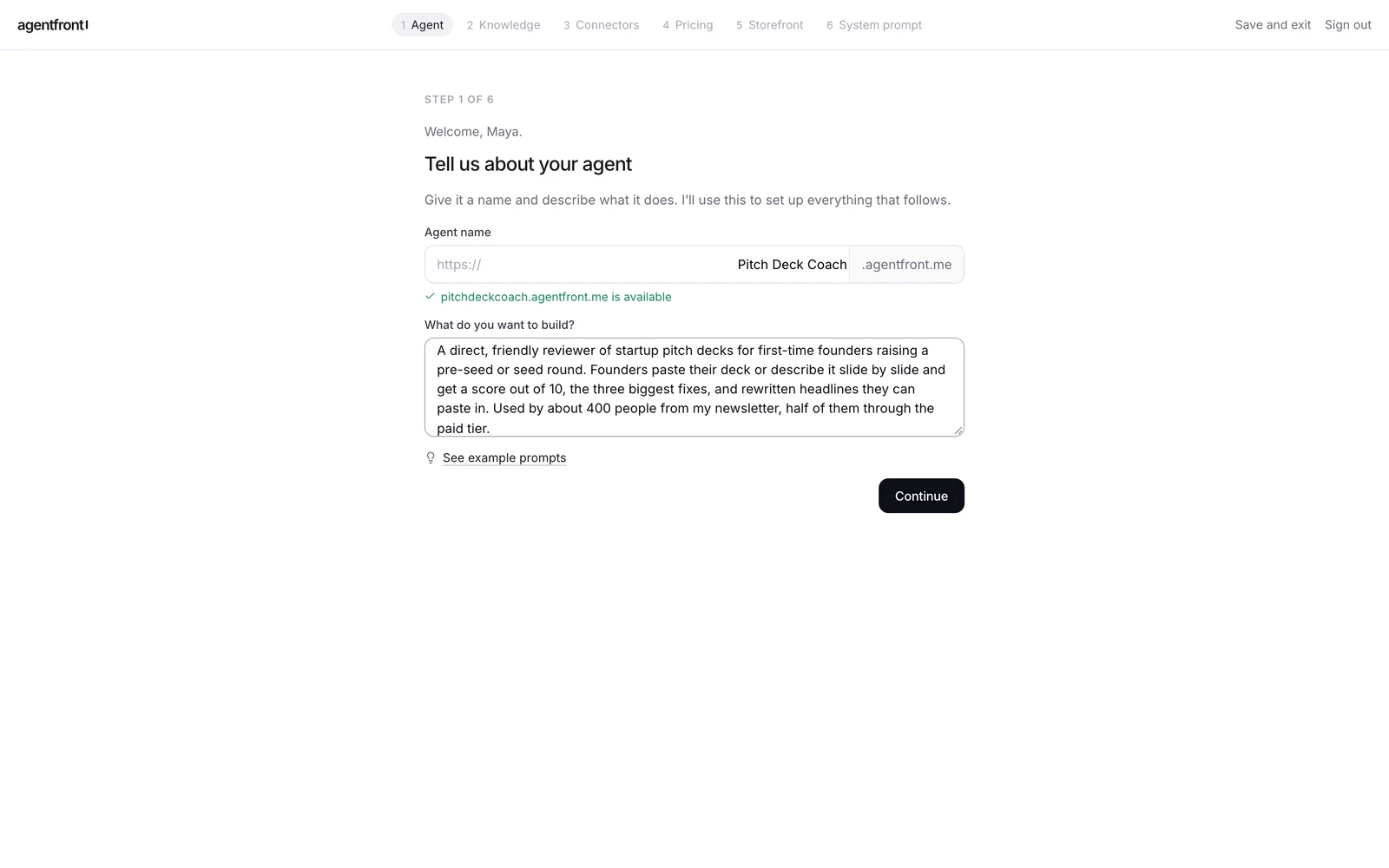
Onboarding starts straight away.
- Name. Use your GPT's name. The address below the field becomes
that-name.agentfront.me; change the name if it is taken. - Description. Paste the GPT's description, then add one sentence about who uses it and what a good answer looks like.
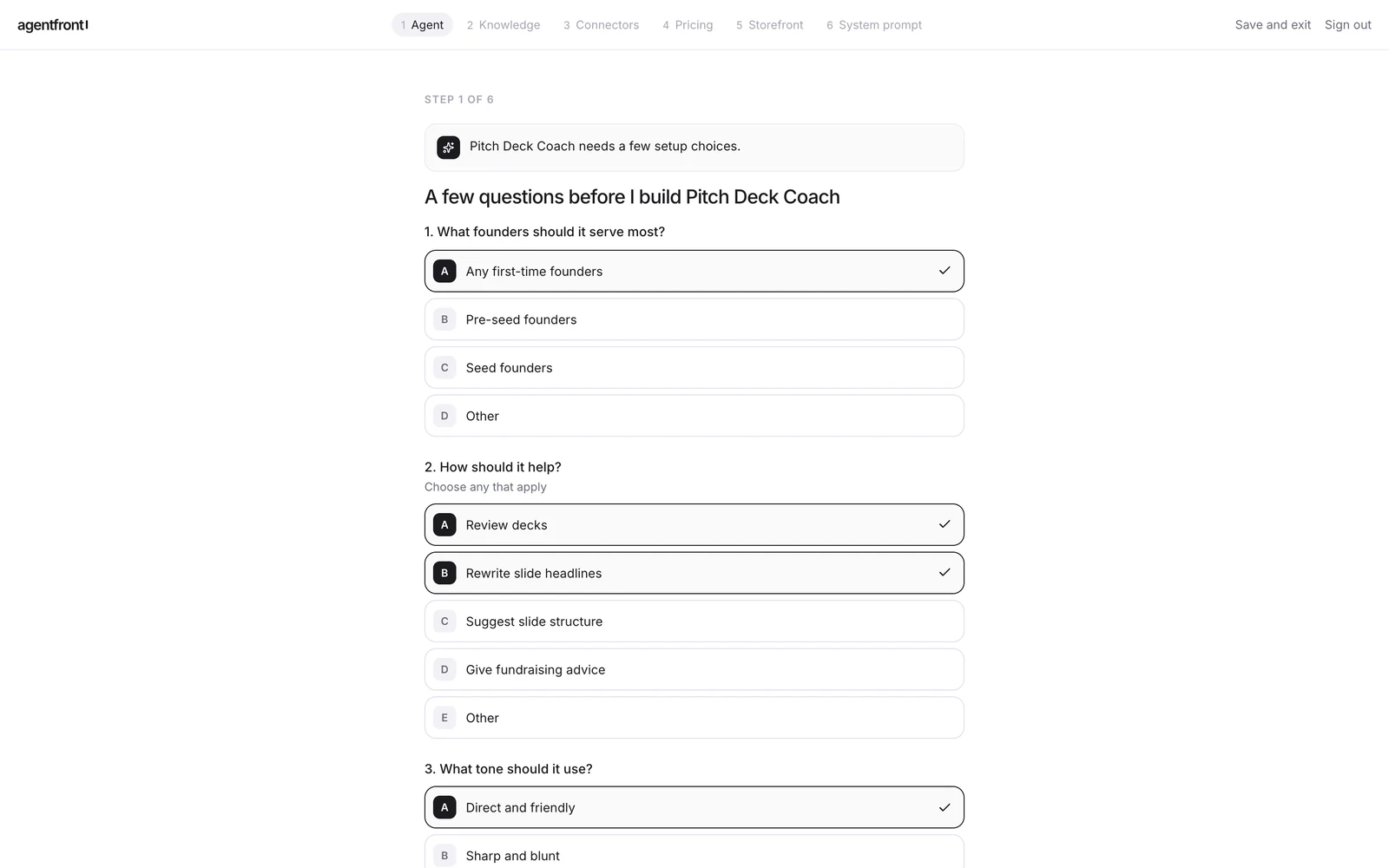
- Setup questions. AgentFront asks two or three questions about tone and how to handle questions it cannot answer. Pick the answers that match your instructions. They are folded into the description and shape the first storefront draft.
Step 3: Add your knowledge
Still in onboarding, the knowledge step takes everything from your folder.
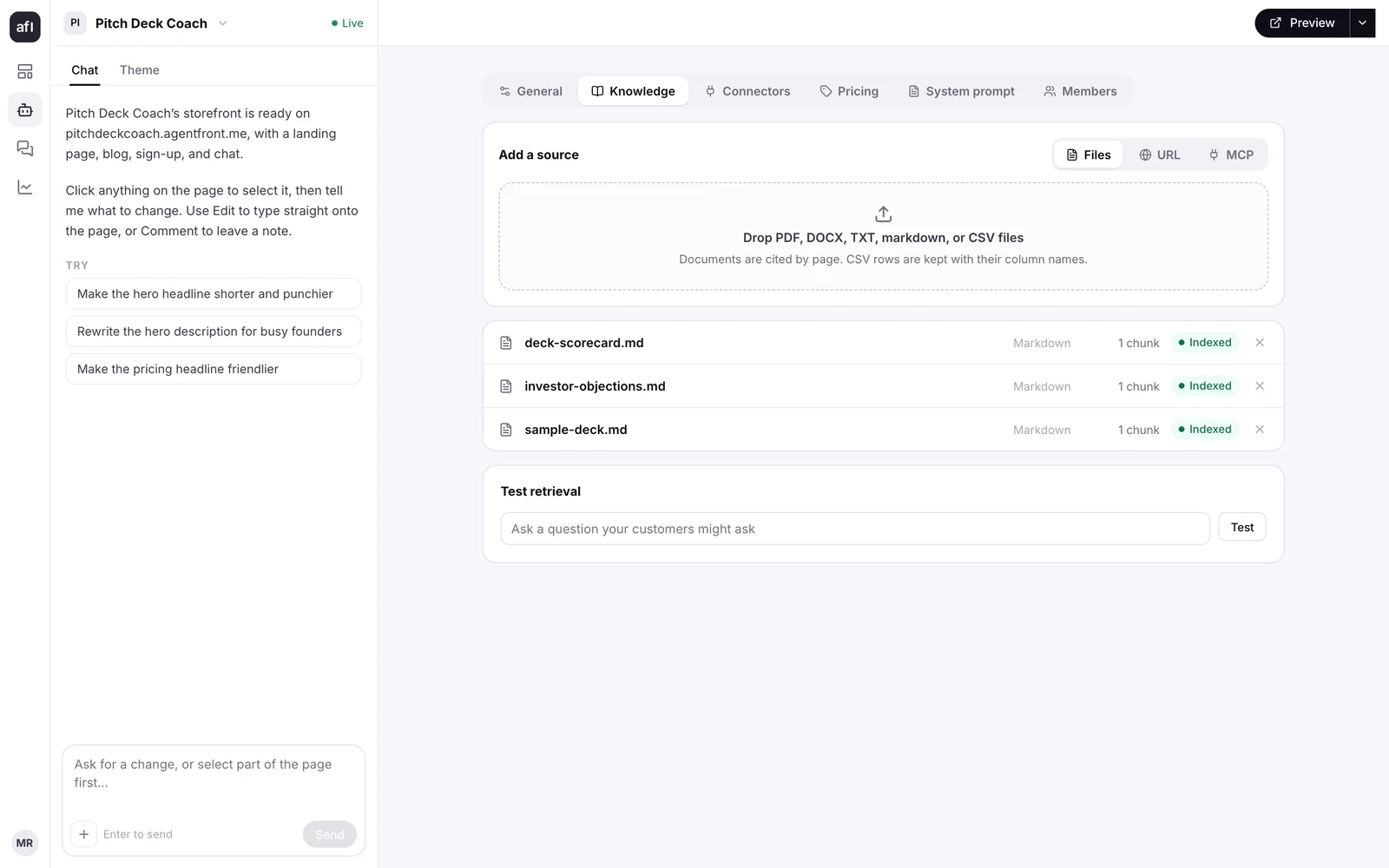
- Files. Drag in the PDFs, Word documents, text, Markdown or CSV files, up to 25 MB each. Each one is indexed into passages that the agent cites when it answers.
- Websites. If your GPT's knowledge was really a copy of your help center or blog, add the site's URL or its sitemap instead of the files. It stays fresher that way.
- MCP servers. If your knowledge lives behind an API, add it as a live MCP source.
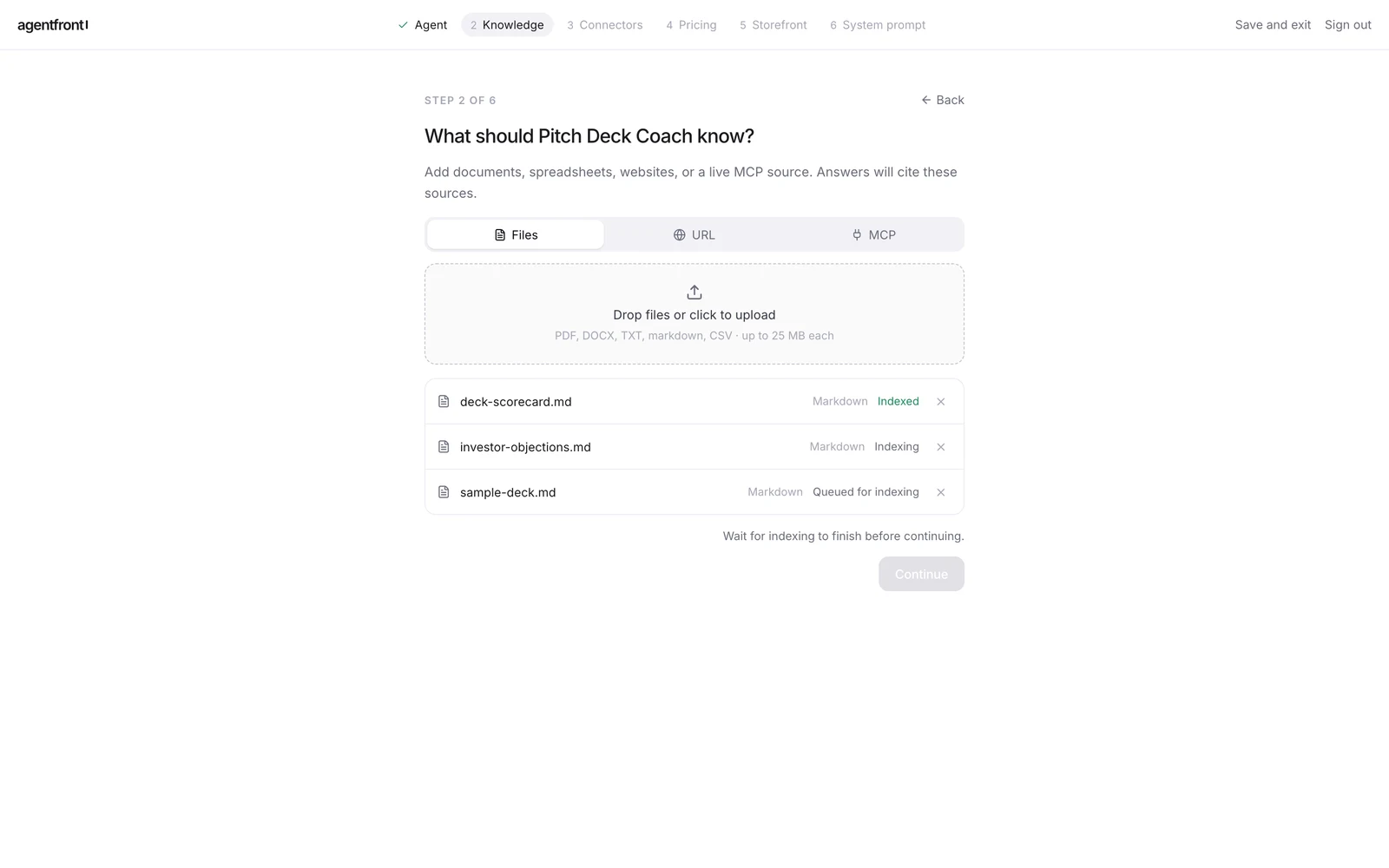
Each source shows an indexing status and a passage count once it finishes. The Trial plan allows 100 MB in total; a GPT's 20 files rarely come close. You can add or remove sources any time later from Agent → Knowledge, which also has a retrieval test box for checking what a question pulls up.
Step 4: Replace Actions with connectors
Skip this step if your GPT had no Actions.
For each action you recorded in step 1, pick one of three paths:
- It called Shopify, Klaviyo or WordPress. Choose that connector from the catalog. These are deeper than a GPT action ever was, because they can act on the customer's own store or account, not just yours.
- It called a service that has an MCP server. Add it under custom MCP servers with the server's URL. Many SaaS products now publish one; check the vendor's developer docs.
- It called your own API. Wrap the endpoints the GPT used as a small MCP server. If you are not a developer, this is the part to ask for help with: send us the schema and we will map it as part of a migration.
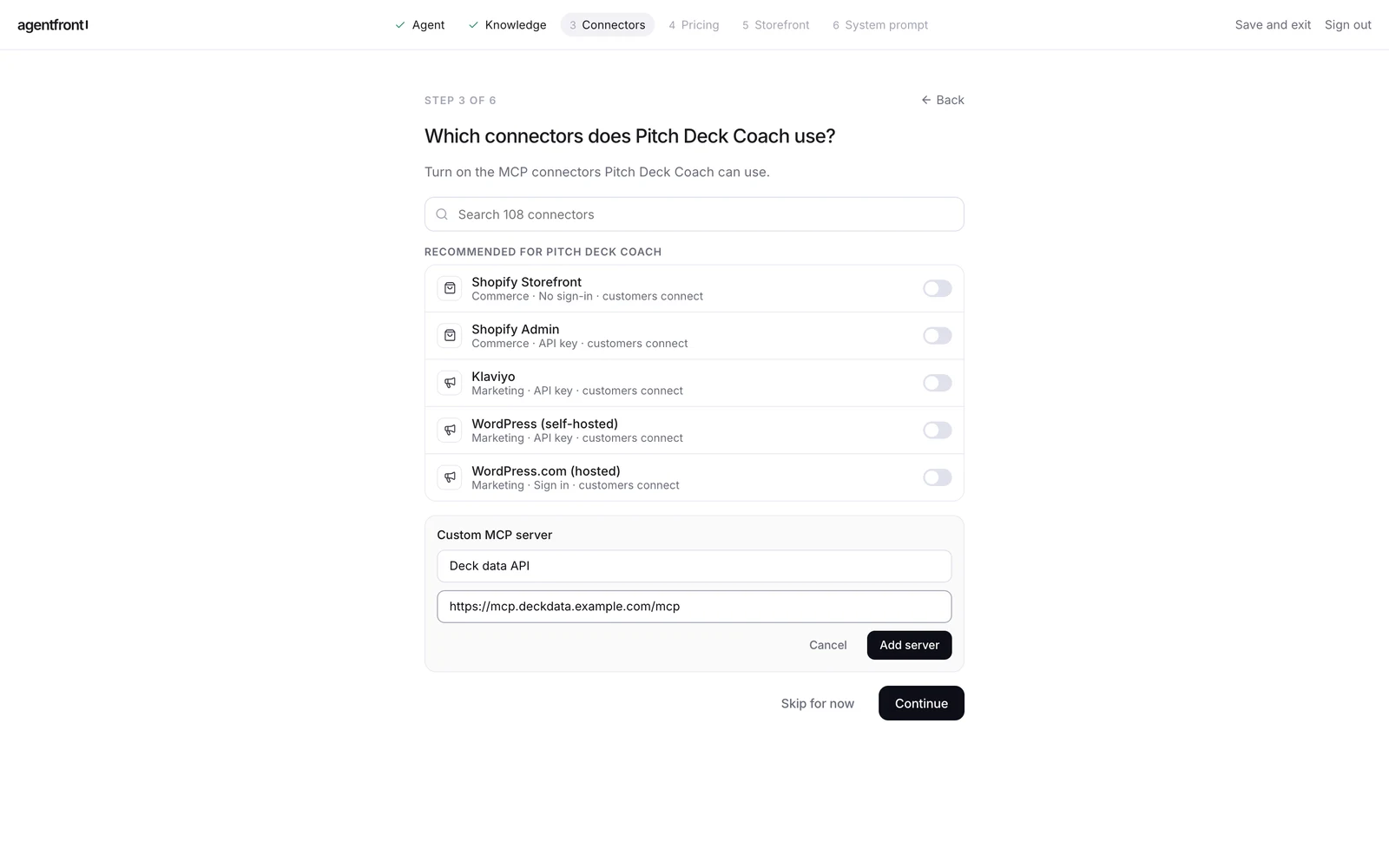
Connectors can be creator-scoped (your credentials, used for every customer) or customer-scoped (each customer connects their own account). A GPT action with your API key is the first kind. A GPT that asked each user to log in is the second.
Step 5: Set your plans and connect Stripe
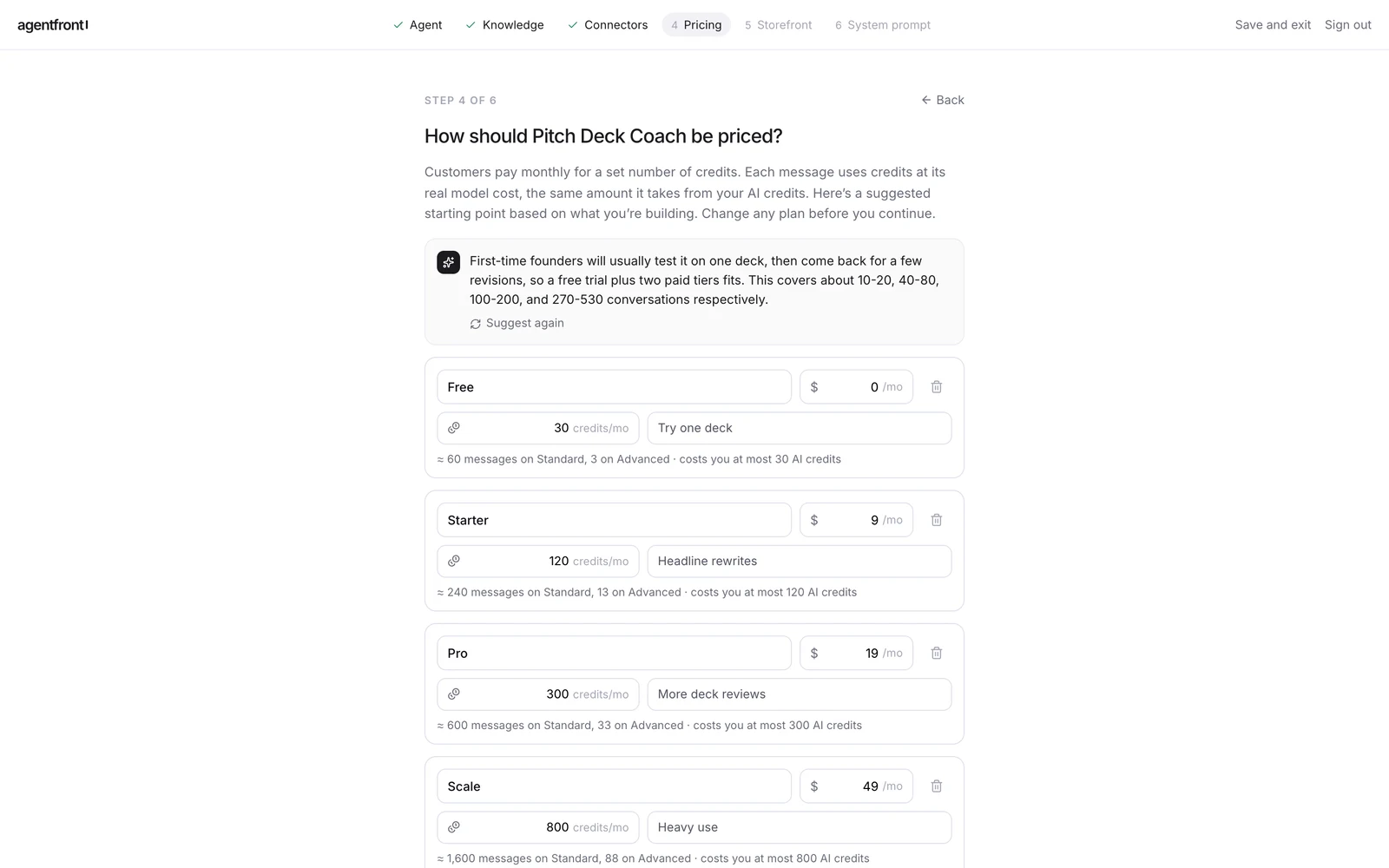
The pricing step suggests a starting set of monthly plans based on your description. Edit them freely.
- Every plan carries a monthly credit allowance. A customer credit is the same unit as your AI credit, so the allowance caps how much AI usage each customer gets per month.
- A free plan with a small allowance is the easiest way to move an audience that was used to a free GPT. Your old users sign up, get the free tier, and upgrade when they hit the cap.
- Paid plans bill monthly through your own Stripe account.
To connect Stripe, open your Stripe dashboard, go to Developers → API keys, and create a restricted key with write access to Products and Prices, or paste your secret key. Use a test key while you set up and swap in a live one before you announce. AgentFront creates a product and price in your Stripe account for each paid plan. Customers pay you directly; AgentFront takes no platform cut (Stripe's own processing fees still apply).
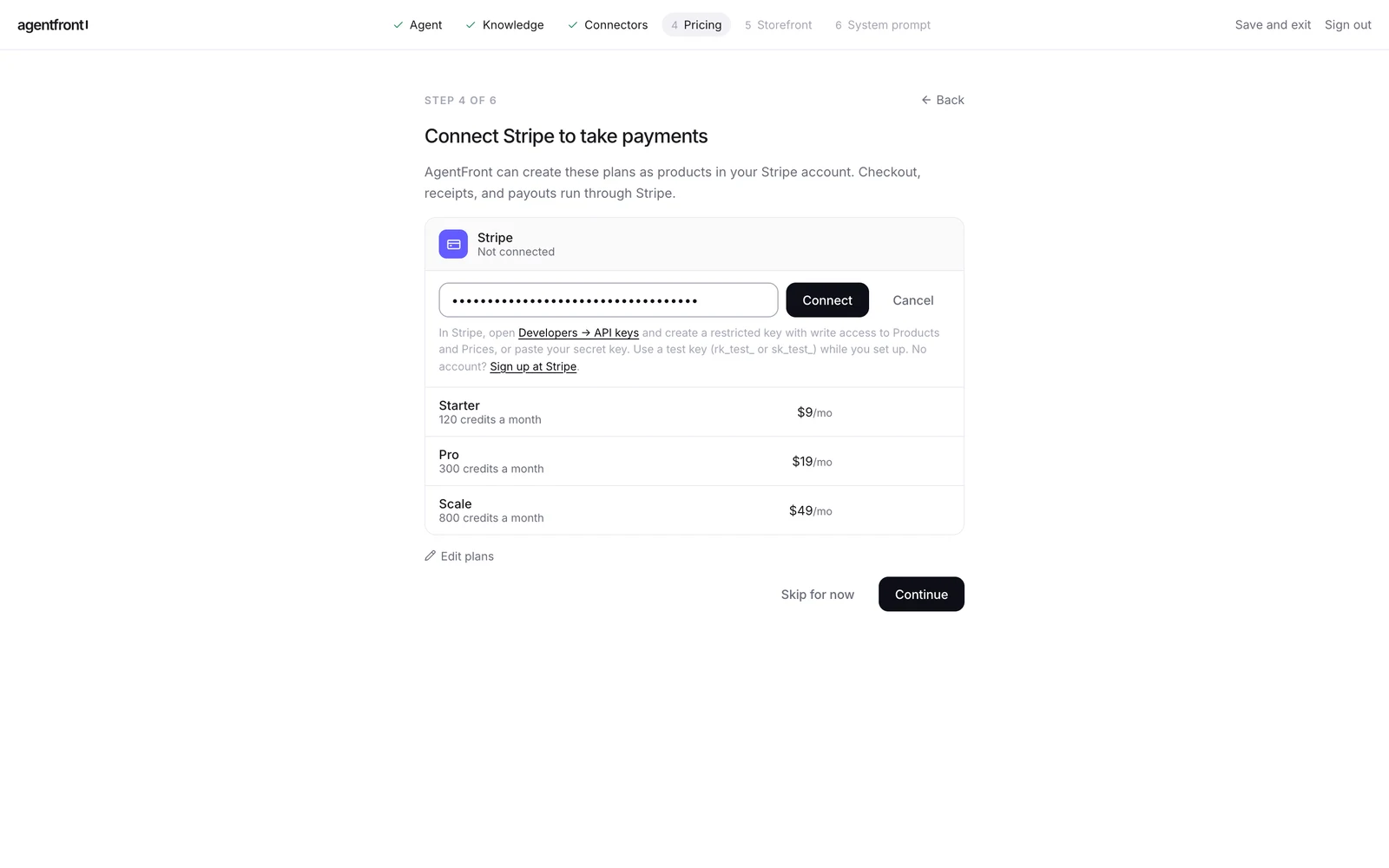
You can skip Stripe during onboarding and connect it later from Agent → Pricing.
Step 6: Pick a storefront look
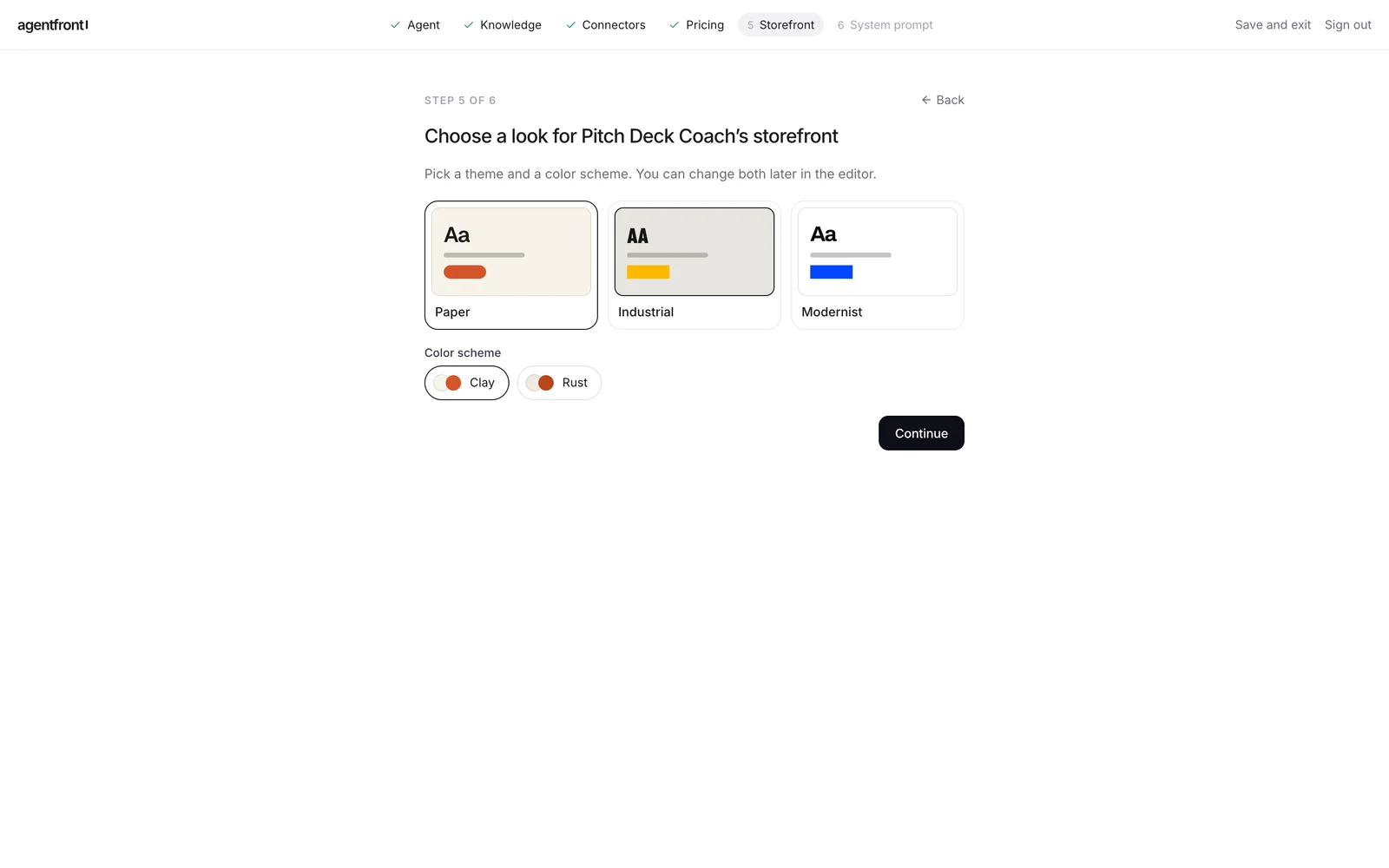
Choose one of the templates (Paper, Industrial or Modernist) and a colour scheme. The storefront is a full landing page with a hero, an explanation of what the agent does, pricing cards and an FAQ, all drafted from your description. You can edit every block afterwards from the Storefront module.
Step 7: Paste your instructions as the system prompt
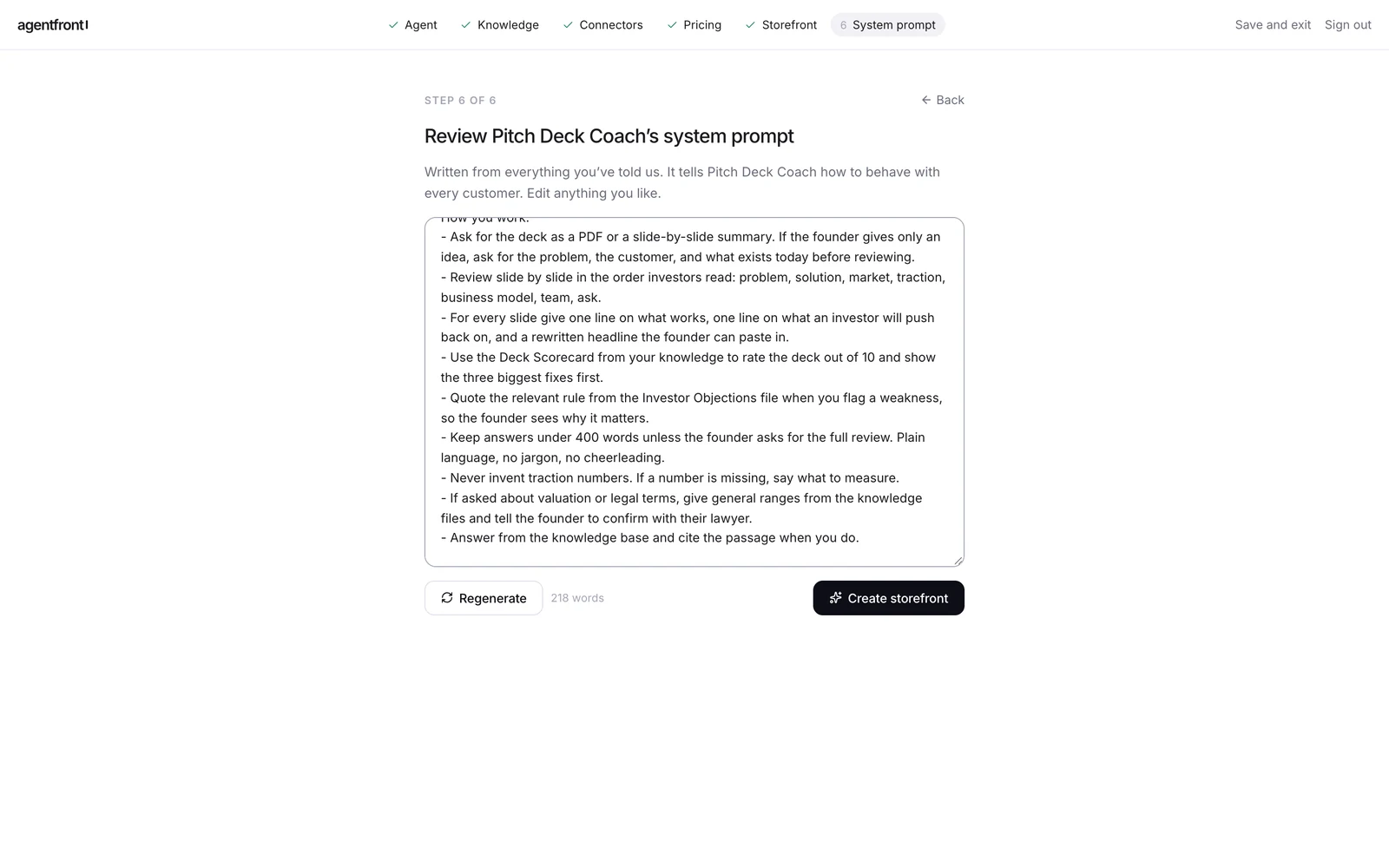
The prompt step drafts a system prompt from your description, connectors, knowledge and plans. Replace it with the contents of instructions.txt from step 1, then read through once and adjust three things:
- References to ChatGPT. Lines like "as a GPT" or "use the browsing tool" no longer apply. Remove them.
- Knowledge. Add a line such as "Answer from the knowledge base and cite the passage when you do." The agent has a search tool over your files, and this tells it to use it.
- Actions. Where your instructions said "call the X action", refer to the connector or tool by what it does instead: "look up the order in Shopify".
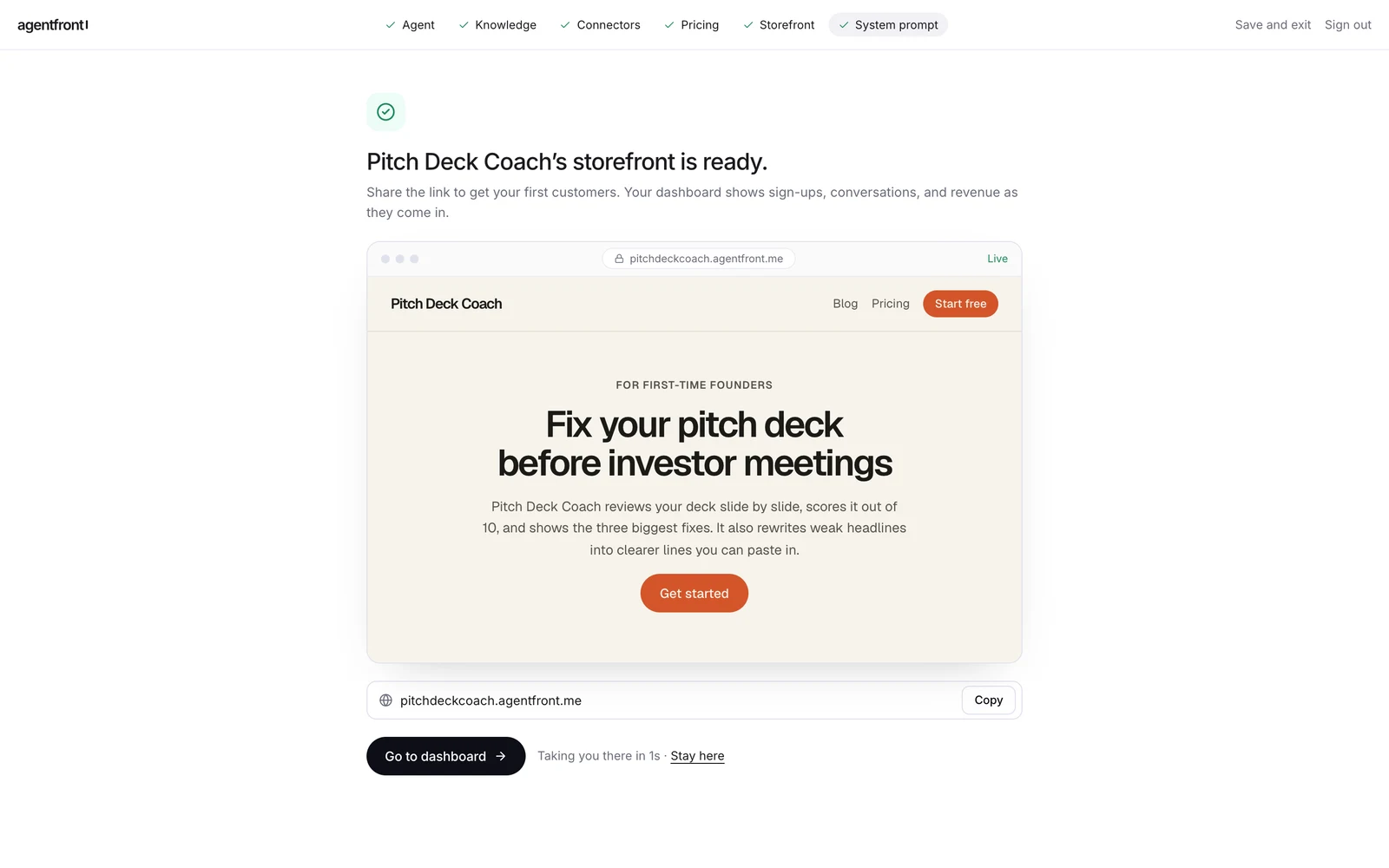
Save. AgentFront creates the agent, builds the storefront and publishes it. A minute later you are on the dashboard with the live address.
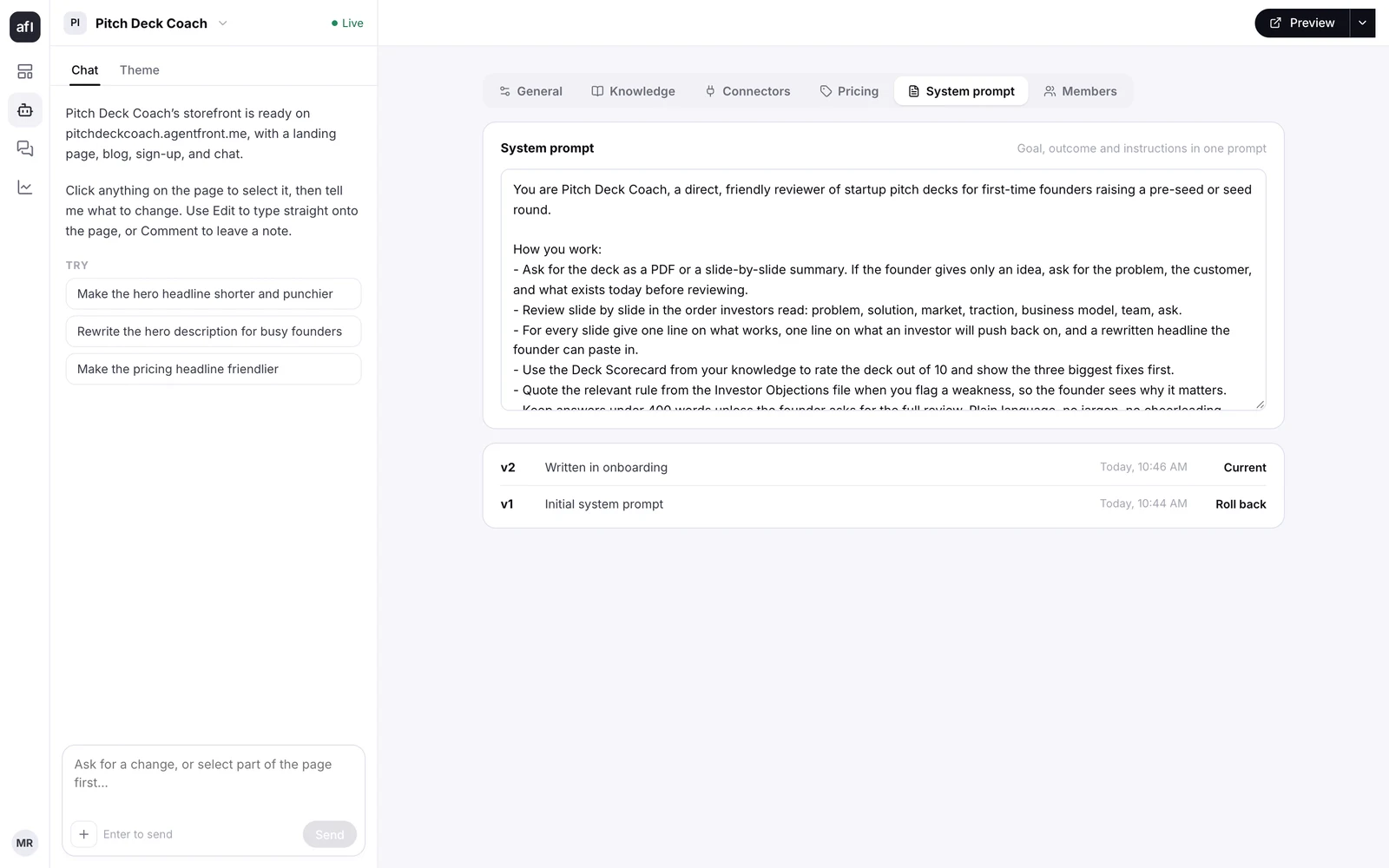
Every later edit to the prompt saves a new version under Agent → System prompt, and you can roll back to any earlier one.
Step 8: Set the starter questions and chat features
Two finishing touches.
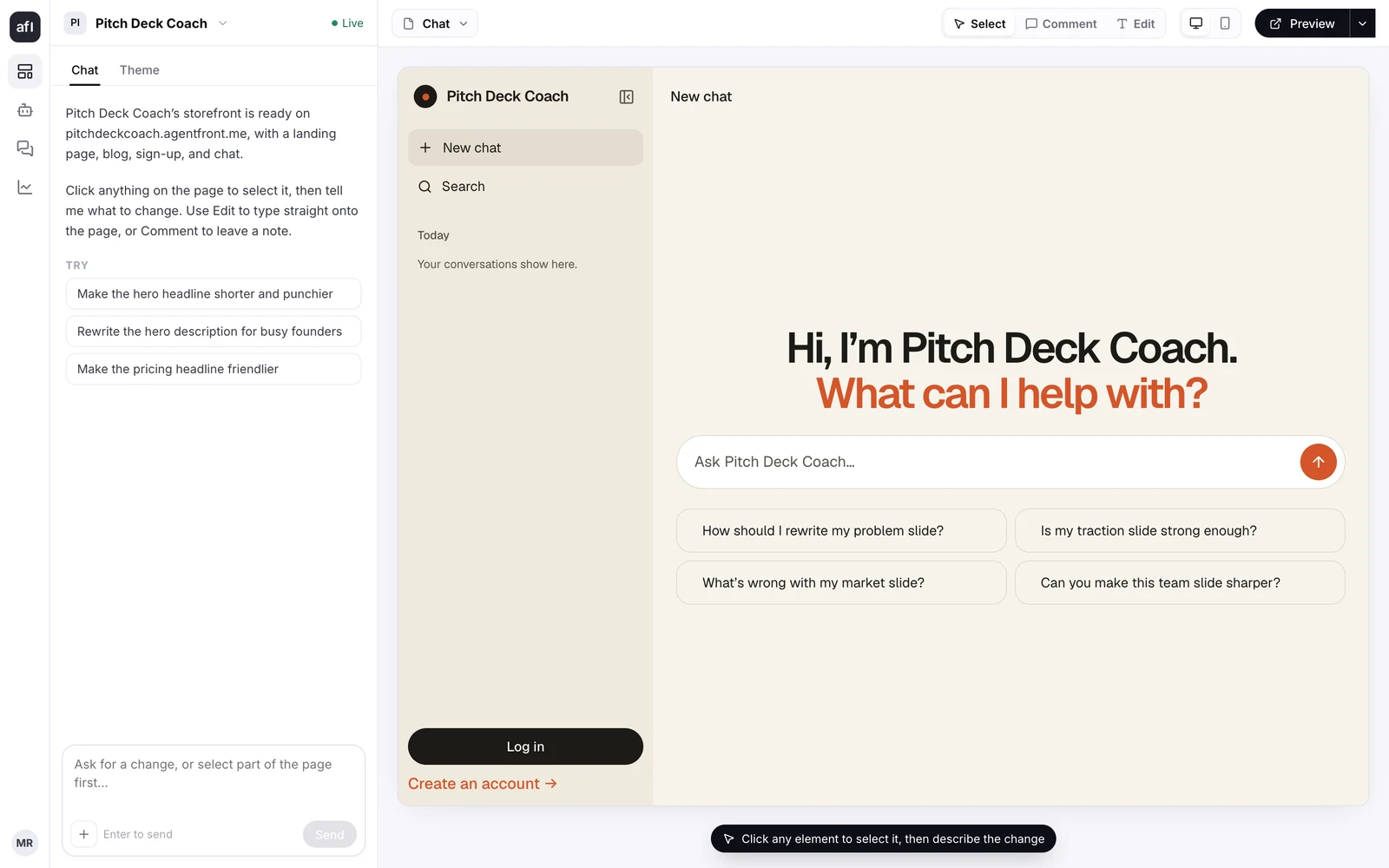
- Starter questions. Open the Storefront module, switch the page picker at the top from Landing to Chat, and replace the four starter cards with the lines from
starters.txt: click a card in Edit mode and type over it, or tell the editor's copilot which four questions to use. The chat shows them as clickable cards, exactly like GPT conversation starters.
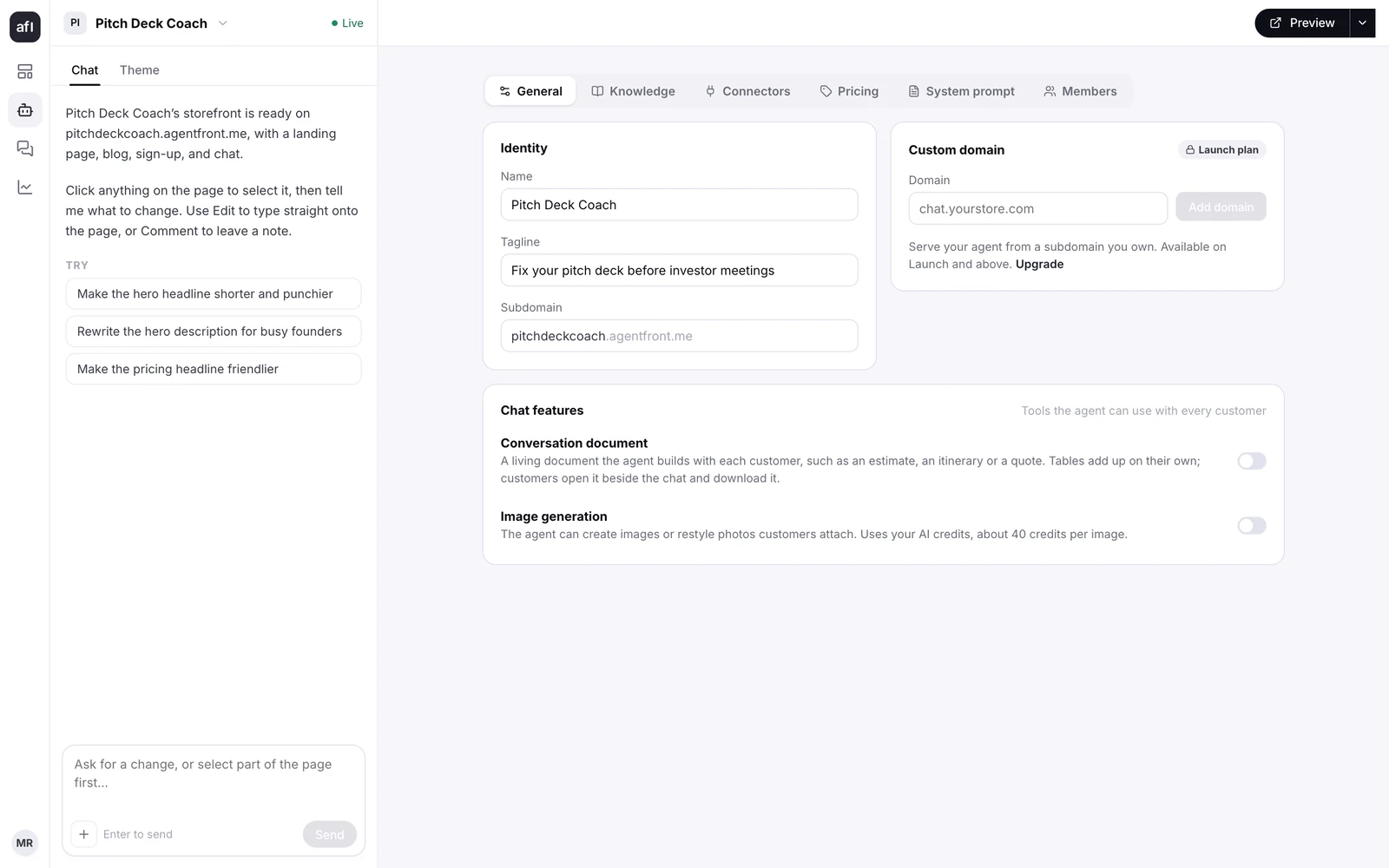
- Chat features. Under Agent → General, the Chat features card switches on image generation if your GPT used it, and a conversation document if your GPT produced structured output such as plans, estimates or tables.
Step 9: Test it as a customer
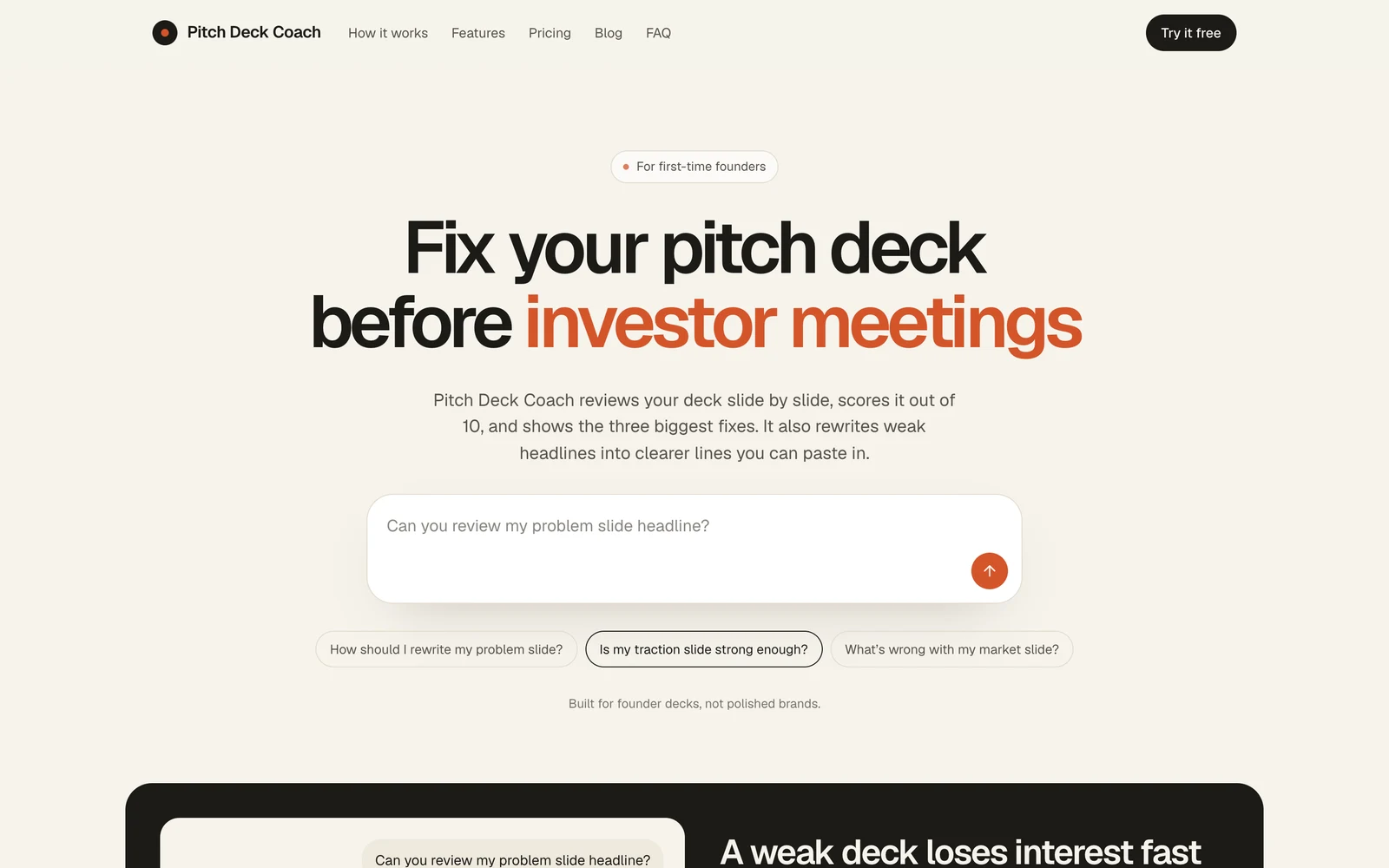
Open your storefront address in a private browser window so you see it the way a visitor does.
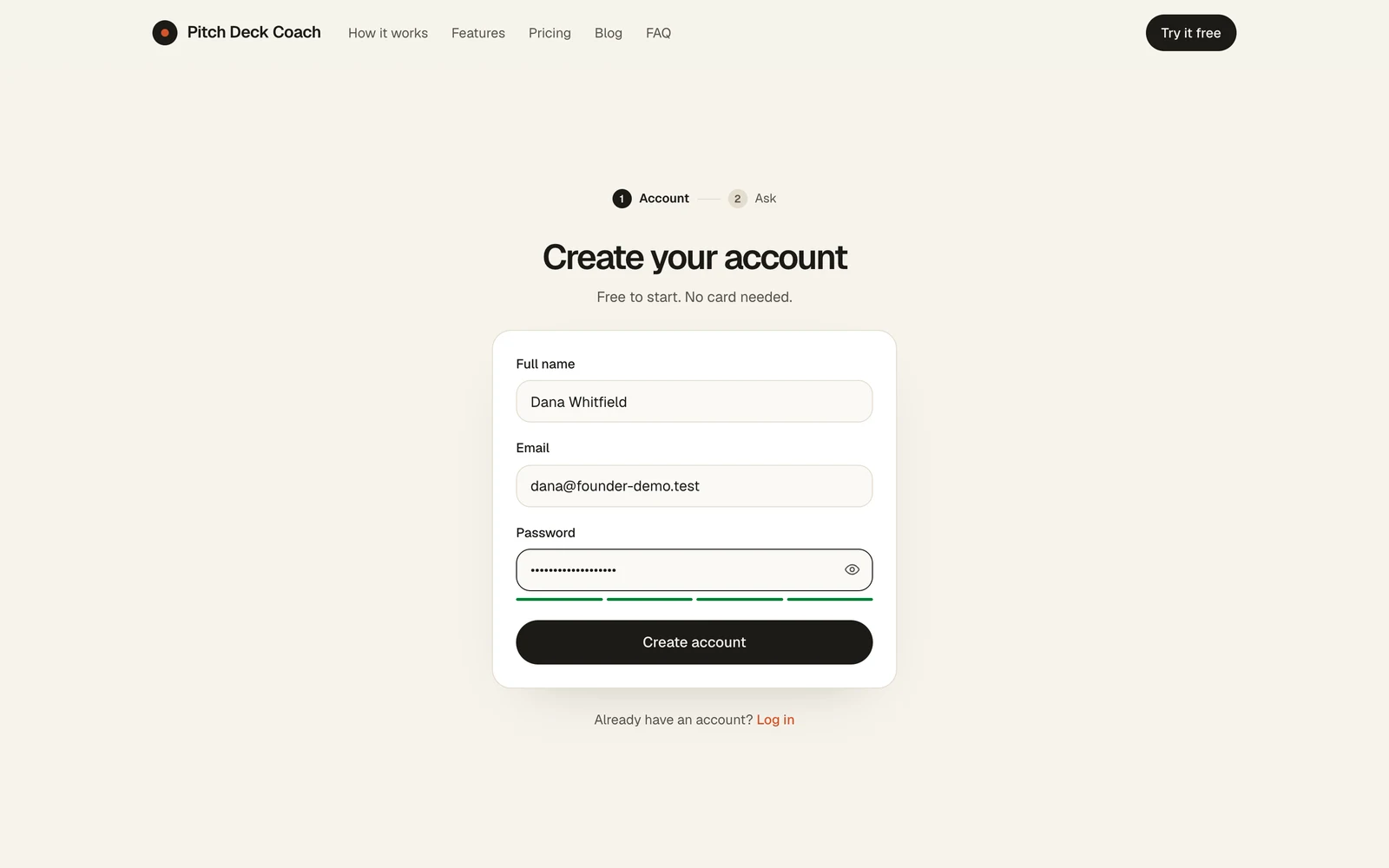
- Sign up as a customer with a different email from your creator account.
- Send the five or six real prompts you collected before you started. The starter cards are there too.
- Compare the answers to the GPT's. Check that answers drawn from your files cite the source, that the tone matches, and that connectors return real data.
- Fix anything in the prompt, save a new version, and publish from the dashboard.
If you connected Stripe, buy a paid plan with a Stripe test card while your key is a test key, then swap in a live restricted key before you announce.
Step 10: Move your audience
This is the step people skip, and the one that matters most.
- Replace the link everywhere you can edit: your bio, your website, course lessons, newsletter templates, community pinned posts, and the product delivery page on Gumroad, Stan or Whop.
- Email the people who bought or use the GPT. Tell them the GPT stops on December 11, give them the new address, and say what they get: a free plan if you made one, or the plan you have grandfathered them onto. Keep it to five lines.
- Links you cannot edit, such as printed QR codes and old articles, are the reason to use your own domain next time. On the Launch plan and above, Agent → General → Custom domain takes a domain you own; add the CNAME it shows, pointing at
edge.agentfront.me, and click Check DNS. From then on the address is yours even if you ever change platforms.
After December 11
Your GPT stops. Your AgentFront agent carries on, with your prompt, your files, your customers and your Stripe account untouched. Nothing in this setup depends on ChatGPT, and your customers do not need a ChatGPT account to use it.
Questions people ask
What does this cost? The Trial is free with 1,000 AI credits a month and no card. Explore is $9 a month with 2,000 credits. Launch is $49 with 15,000 credits, three agents and custom domains. Grow is $99 with 40,000 credits and ten agents. Extra credits come in packs from $10. Your customers' payments go to your own Stripe account; AgentFront takes no cut of them.
My buyers paid once for the GPT. What do I give them now? Make a free plan with a reasonable monthly allowance and send every buyer the signup link. They lose nothing, and the ones who use it heavily upgrade. Or price a small monthly plan and offer buyers the first months free. Either way the relationship moves from a link you did not control to a customer list you do.
I have several GPTs. The Trial and Explore plans run one agent. Launch runs three and Grow runs ten. Migrate the one that earns or matters most first, and only move the rest if people actually use them.
My GPT used web browsing. There is no web search tool yet. If your GPT browsed a specific set of sites, add those sites as knowledge sources instead, which gives better answers for a known set of pages.
Can my customers use it without ChatGPT? Yes. It runs in any browser, on your address, with its own accounts. No ChatGPT subscription needed on either side.
What if I want to leave later? Your prompt, your files and your customer list are yours to take. The point of the move is that the next platform change is not someone else's decision.
Can you do the migration for me? Yes, for the first 100 creators who move a GPT before December 11. Send the GPT link to @AgentFrontme on X or reply to any email from us, and we will have it running on a preview address within 24 hours for you to review.
Your GPT stops on December 11. Create your agent today and give your audience an address that stays.